How to 3D Print Custom Drawer Organizers: Measure, Model and Fit
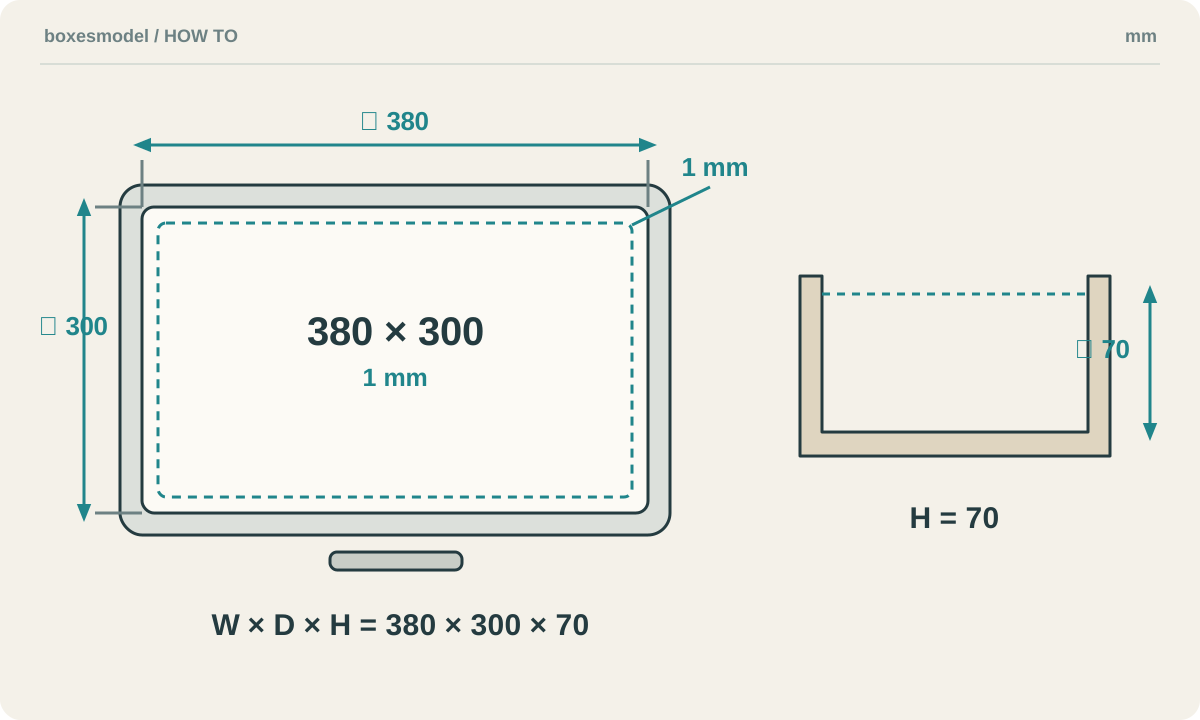
To make a drawer organizer, measure the drawer and its contents, allow clearance, plan separate bins, then model, slice and test the fit. This illustrated guide uses a 380 × 300 × 70 mm drawer to explain the general method before walking through the boxesmodel generator.
1. Decide what to store and prepare your tools
Group items by how you use them: pens and scissors need long compartments, while adapters and erasers suit small ones. Put frequently used items at the front. Arrange the real objects on paper and leave room for your fingers; fitting inside is not the same as being easy to pick up. Separate bins are easier to replace, clean and print in batches.
Prepare a ruler or tape measure, calipers, paper, CAD software or an editable model, a slicer, an FDM printer and filament. PLA is a practical starting point for light items indoors at room temperature; consider PETG for tougher edges or frequent handling. Use the printer and filament manufacturer’s profiles for temperatures and build surfaces.
2. Measure the cavity, not the drawer front
Measure width left to right and depth front to back. Repeat at the front, middle and back and use the smallest measurements. Measure height from the drawer floor to the lowest obstruction when closed. Note rounded corners, screw heads and rail protrusions and exclude the space they occupy.
A bin’s outer dimensions must fit the available space, while its usable interior is smaller by the wall thickness on both sides. An outer width of 94.1 mm with 1.6 mm walls gives about 90.9 mm between straight walls; corners and bottom fillets reduce space locally. Start with the clearance your objects need, then work outward.
3. Plan the layout with clearance included
For equal separate bins: outer width = (drawer width − 2 × side clearance − (columns − 1) × gap) ÷ columns. Apply the same formula to depth. With 1 mm per side, 0.5 mm between bins and 4 columns × 3 rows: width = (380 − 2 × 1 − 3 × 0.5) ÷ 4 = 94.125 mm; depth = (300 − 2 × 1 − 2 × 0.5) ÷ 3 = 99 mm.
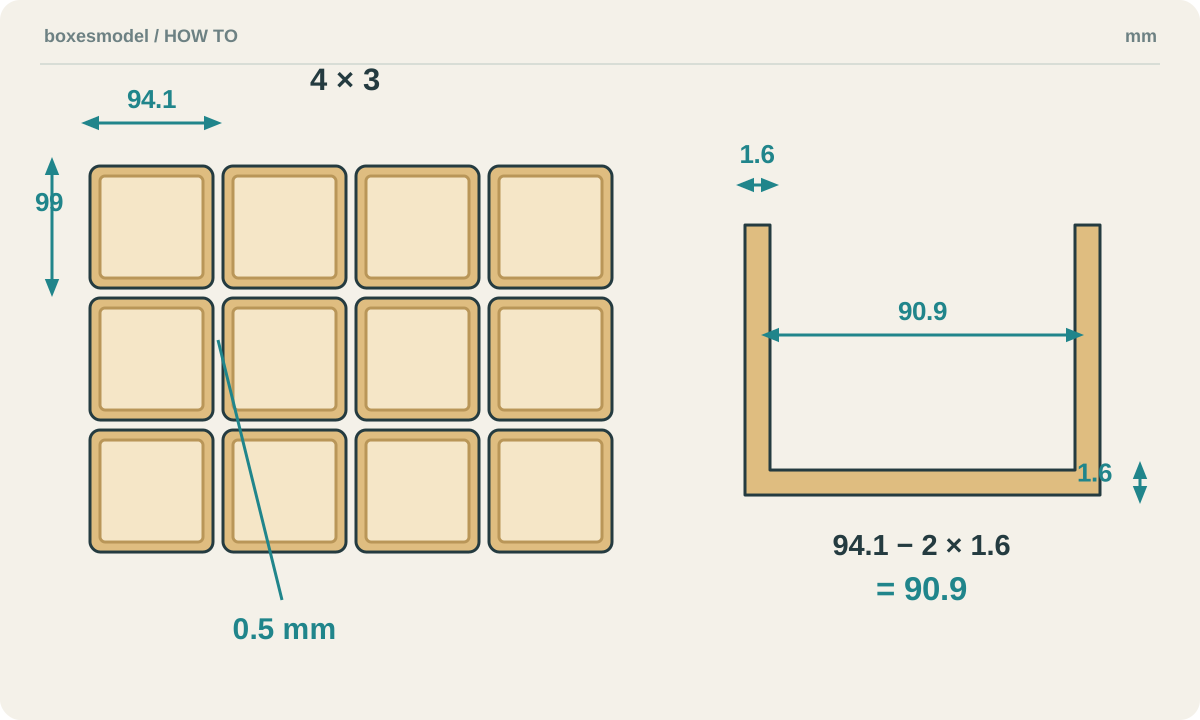
These clearances are a starting point, not a universal printer tolerance. A bin height of 67 mm leaves 3 mm below a 70 mm obstruction. For long objects, replace adjacent cells with a longer bin. Check that both footprint dimensions and the height of that bin fit your printer, rather than only checking the overall drawer.
4. Model an open bin from a rectangular solid
In CAD, sketch the outer footprint and extrude it to the required height. Sketch the inner outline on the top face and cut downward, leaving a floor. For this example, start with a sample using 1.6 mm walls and floor. Round outer corners for insertion and add a small internal floor fillet for easier cleaning, while preserving the space required by the contents.
You can also use an existing STL with suitable dimensions or edit a STEP model. Avoid scaling an STL indiscriminately to fill the drawer: walls, clearances and height scale along with it. For structural changes, edit CAD parameters instead. Import the exported STL into the slicer in millimeters and recheck its outer dimensions.
Read more: choosing a file format for printing or editing
5. Print one bin and test before batching
A plain open bin is usually printed floor-down with the opening facing up. With a 0.4 mm nozzle, 0.2 mm layers and 3 perimeters are a starting point for a sample. Inspect the layers for continuous thin walls, a closed floor and unsupported regions at fillets. Infill cannot replace adequate walls; add supports only where the geometry actually needs them.
First print a bin intended for a corner. Let it cool, remove burrs, place it in the drawer and check that the drawer closes. If only the bottom catches, inspect first-layer elephant foot; if the entire side is tight, increase clearance based on measurements, for example in 0.2–0.5 mm steps. Once one bin fits, test a full row to catch accumulated spacing errors.
6. Build the same layout with boxesmodel
Once the dimensions make sense, the drawer organizer generator can replace repetitive CAD work. Open it, choose “Desk drawer 380×300×70”, then enter your printer’s bed X, Y and maximum height. The default bed margin is 5 mm on each side. With “Balanced”, this example gives 4 columns × 3 rows, or 12 bins.
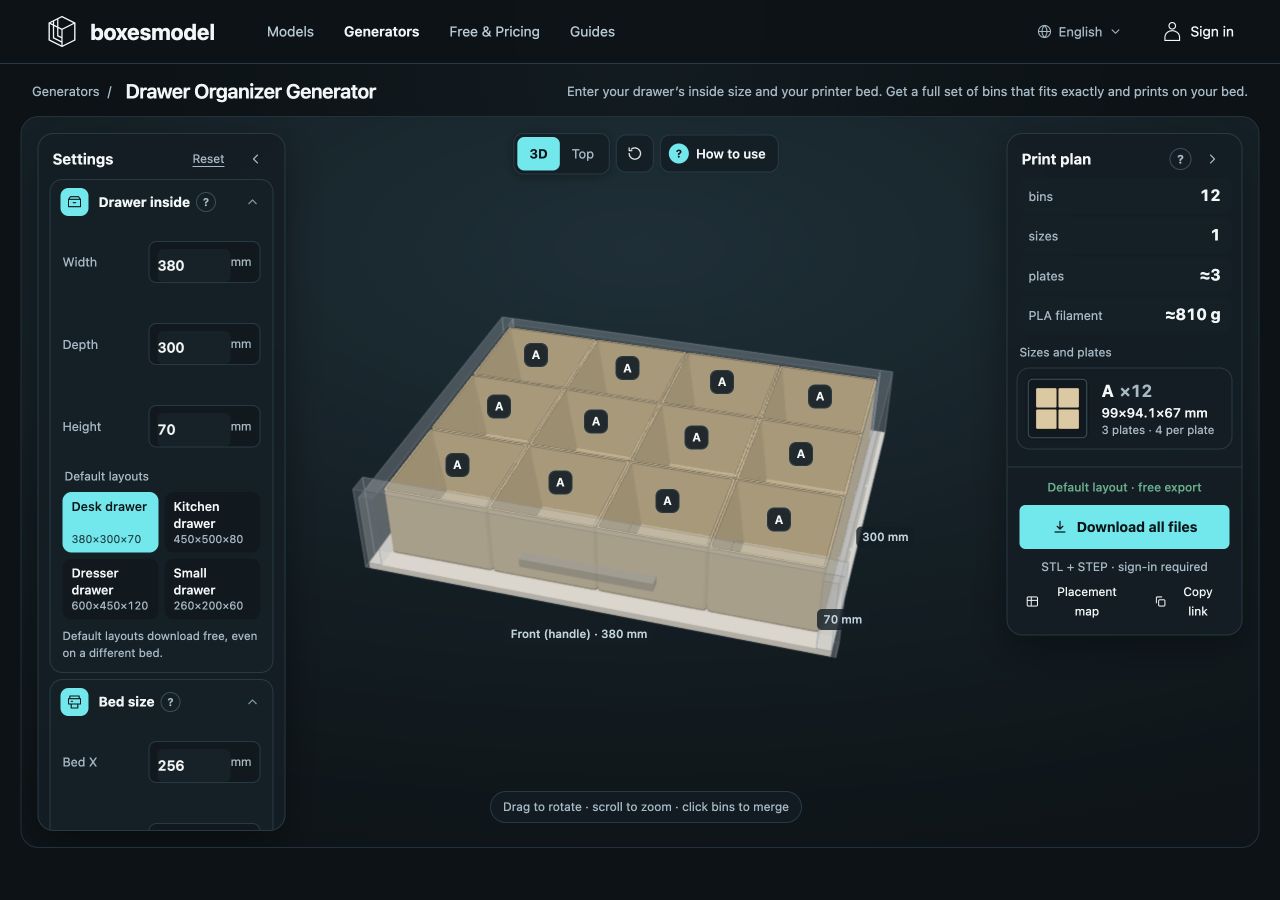
Under “Fit & construction”, check side clearance, bin gap, top clearance and wall thickness. The generator rounds the calculated 94.125 mm down to 94.1 mm to avoid overfilling the drawer. To make a longer bin, select adjacent cells forming a rectangle in top view and merge them, then recheck bed fit. Changing the row or column count clears previous merges.
Check the specifications, quantities and plate plan, then sign in and use the download entry. Follow the page’s current availability for default and custom exports. Import the STL into your slicer for final checks; the generator’s packing estimate is not a ready-to-run print job. Print the remaining quantity only after a single bin and a full row fit.
Open the drawer organizer generator
Common questions and adjustments
Can I use a non-standard drawer size?
Yes. Use the smallest measured internal dimensions and divide the layout into bins that fit your bed. For sloped or curved drawers, start with the usable rectangular area or model the irregular edges separately in CAD.
Should I shrink a bin that rocks in the drawer?
Check the bin on a flat table first. Lifted corners indicate warping; inspect bed adhesion, cooling and the floor rather than hiding it by reducing dimensions. If the floor is flat but the set slides around, recheck total side clearance and the gaps between bins.
References and next steps
The calculations use this example and the current generator rules. Images are diagrams and actual software screenshots, not evidence of physical print tests. Consult the manufacturer references below for materials and perimeters, then verify with your own measurements and slicer preview.
Further reading
- STL vs STEP vs 3MF vs OBJ: 3D Printing File Formats Explained
- How to Measure Your Space and Size a 3D-Printed Storage Box
- Fit, Test Prints and Assembly Checks for 3D-Printed Boxes
- Tolerance and Clearance in 3D-Printed Storage Boxes
- How to Reduce Warping When Printing Lidded Boxes
- Slicer Settings for Printing Storage Boxes
- Choosing Filament for Storage Boxes: PLA, PETG, ABS and TPU
- 3D Print Cost Calculator: Filament, Electricity and Cost per Part
- How to 3D Print a Pegboard: Hole Patterns, Panels, Hooks and Mounting
- How to 3D Print Gridfinity Bins and Baseplates: Sizes, Dividers and Fit